Business Central version 27.4 just dropped a feature that I’ve been genuinely excited about: built-in agents. And I don’t mean some half-baked preview that barely works — you can actually create your own digital co-worker right inside Business Central, without writing a single line of code.
Let me walk you through how to set one up, give it a task, and see exactly what it does behind the scenes.
Setting Up Your First Agent
Getting started is surprisingly straightforward. Open the Agents page, then go to Design → Create Agent. That’s it — you’re in.
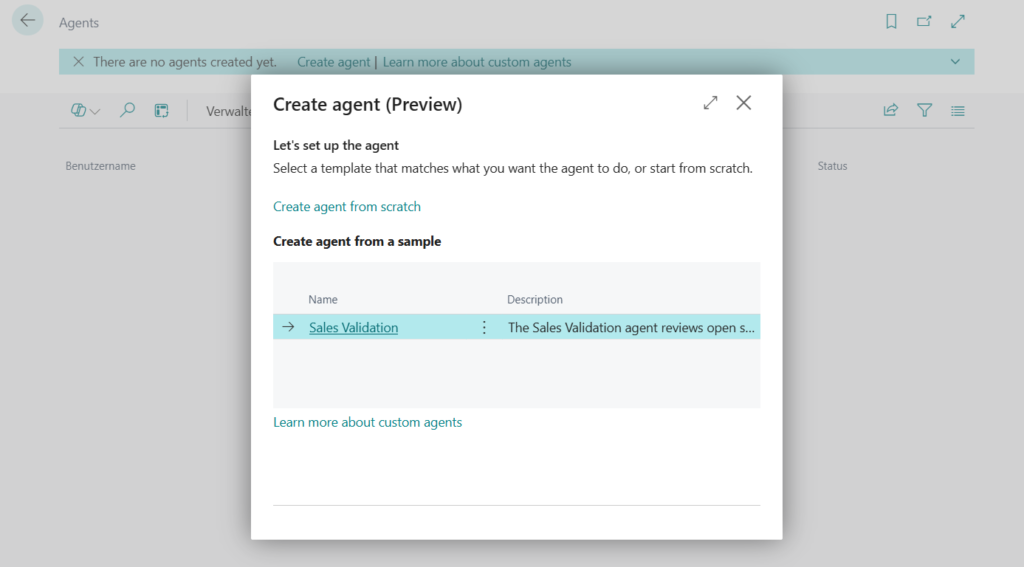
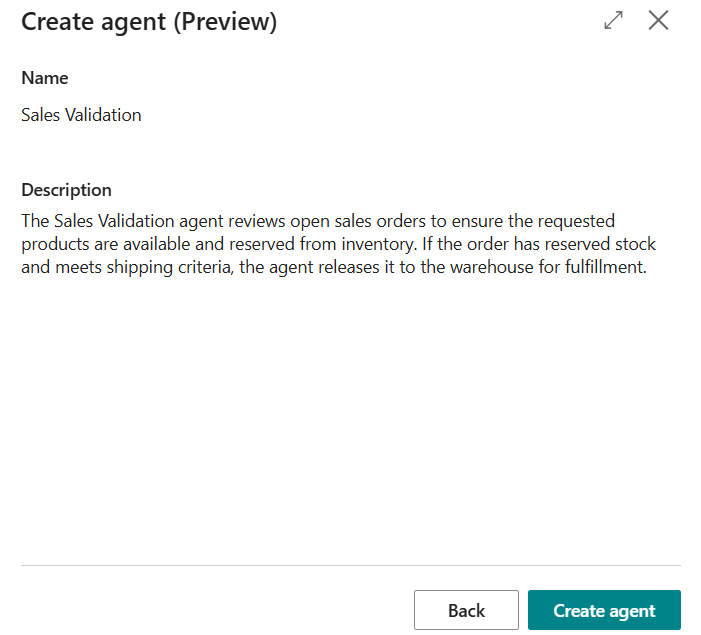
If you want to get a feel for how agents are structured before building your own, I’d recommend starting with the Sales Validation sample. It gives you a solid overview of how instructions, tasks, and agent behavior all come together.
Once your agent is created, you’ll land on the Agent Card — think of it as your agent’s profile page. Everything you need to configure lives here.
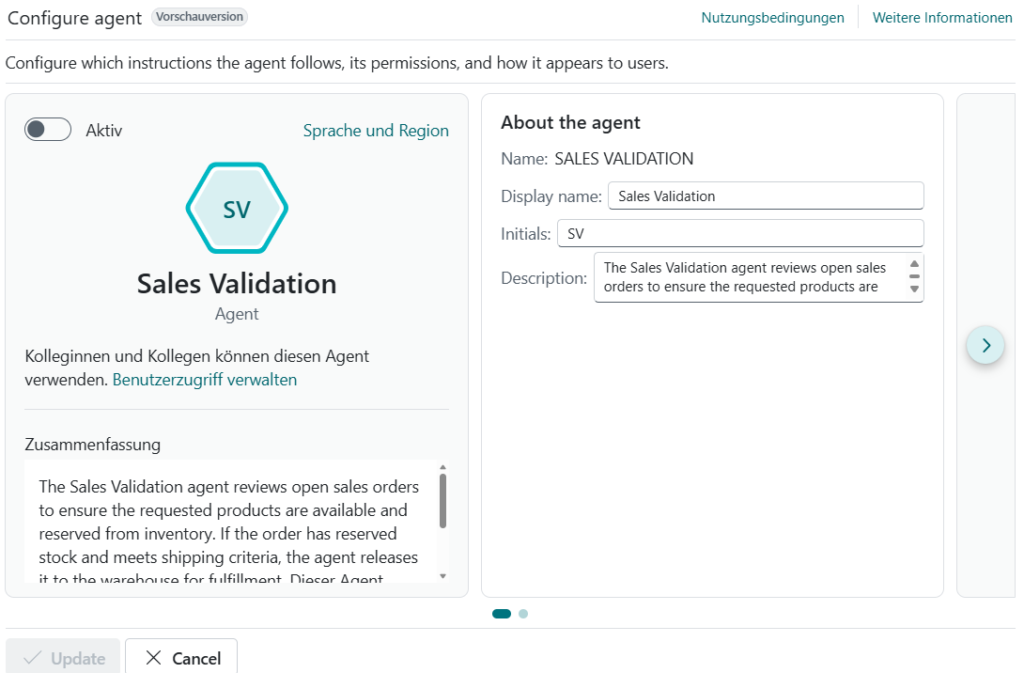
When you’re happy with the setup, just hit Activate and your agent is ready to work.
Giving Your Agent Something to Do
An agent without a task is like an employee on their first day with no onboarding — eager but lost. So let’s fix that.
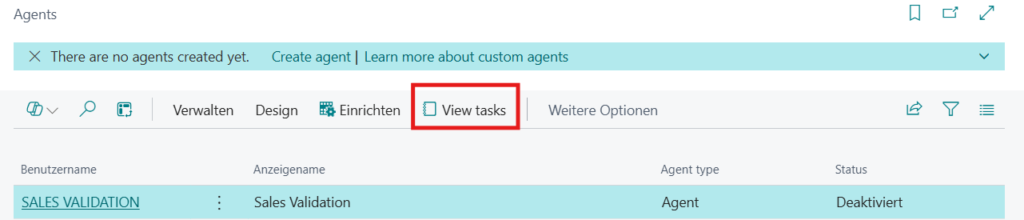
From the Agent Card, click View Tasks, then go to Design → Run Task. Give it a name (something like “First run” works fine for testing) and let the agent loose.
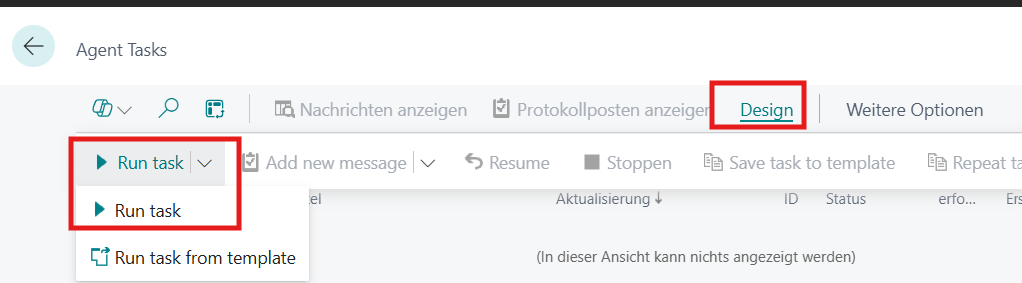
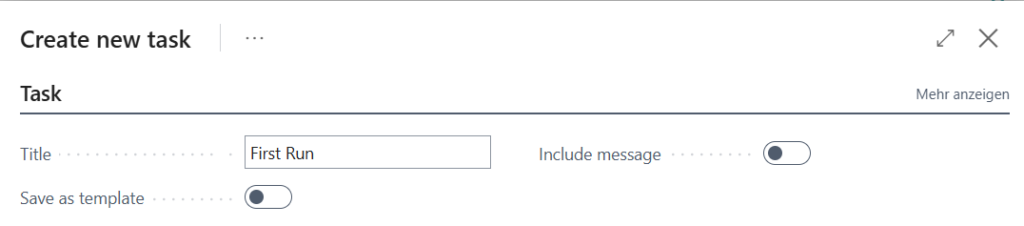
One thing worth mentioning: you can optionally pass a message along with the task to give the agent more context. Depending on how you’ve written your instructions, this can make a real difference in the quality of the output. Think of it as briefing a colleague before they start working on something — the more relevant context you provide, the better the result.
Seeing What Your Agent Actually Did
This is where it gets really interesting — and honestly, where Microsoft nailed the transparency aspect.
In the Agent Task Log, you can see a full record of everything your agent did during its run. Not just the end result, but every step along the way.
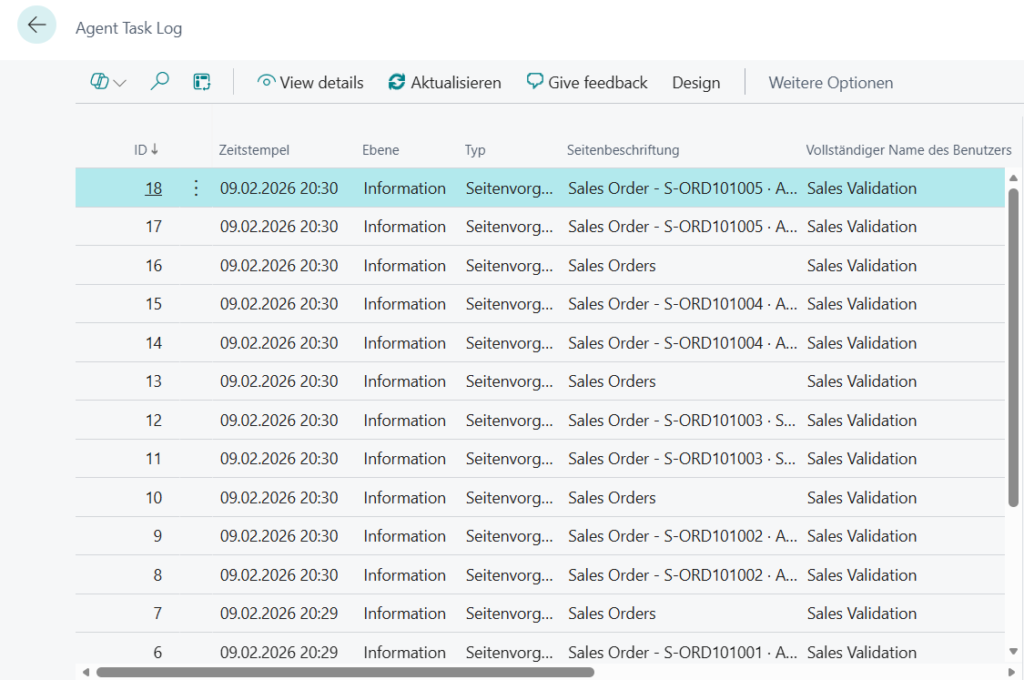
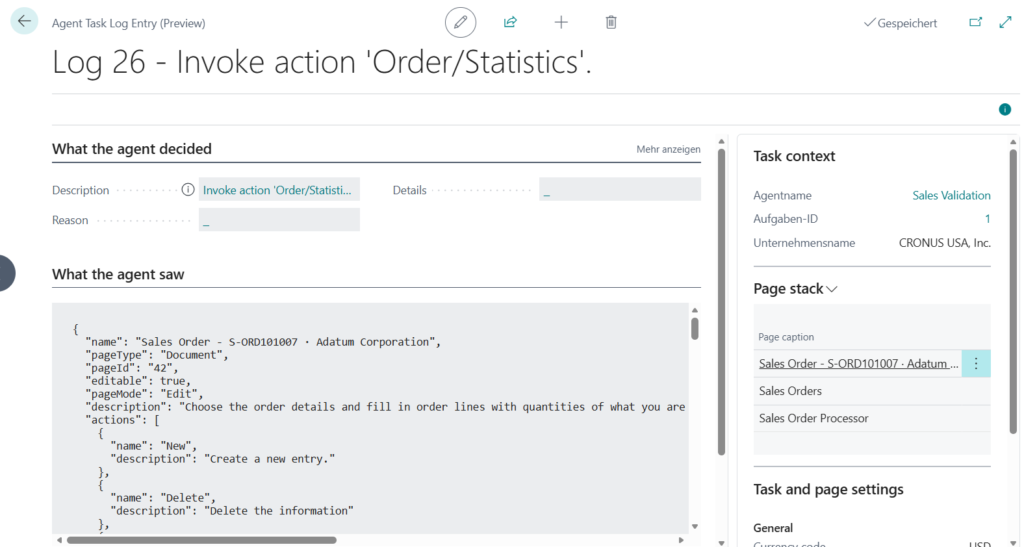
For each log entry, you can drill into what the agent saw and what it decided to do. This is incredibly useful for fine-tuning. If the agent didn’t quite meet your expectations, you don’t have to guess where things went wrong — you can pinpoint exactly which instruction needs adjusting.hat agent saw and decided
And here’s something that will make your finance team happy: every run shows the exact number of Copilot credits consumed. No surprises, no hidden costs — you always know what you’re spending.

With this you are totally in control about the costs.
Why This Matters
What I find most compelling about this isn’t just the feature itself — it’s the approach. Microsoft is putting agent creation directly into the hands of functional consultants and power users. You don’t need a developer. You don’t need Copilot Studio. You configure it right where your business processes live.
We’re still in the early days, and I’m sure there will be plenty of room to push these agents further. But as a starting point? This is solid. Give it a try and see what your first agent can do — you might be surprised.
Discover more from Lubenheimer
Subscribe to get the latest posts sent to your email.