I was cleaning up a client’s Dynamic Tool Mode configuration for their Business Central MCP server last week when I stumbled over a feature key I’d never actually enabled: Feature: Preview semantic similarity search on application metadata. Doc stand on the Learn page: November 17, 2025. Nine months old, sitting quietly in Feature Management, and I’d walked past it a dozen times without touching it.
Turns out it’s worth touching. Here’s what it does, how to turn it on, and why it matters for more than just chat.
What the feature key actually does
Microsoft’s own description is short enough to quote in full:
“The Feature: Preview semantic similarity search on application metadata key in Feature Management controls how the system finds pages and reports based on search terms entered by users:
- When disabled, Copilot uses keyword-based search to find objects by matching their metadata, like name and description. Users need to know the name of the object they’re looking for.
- When enabled, Copilot uses semantic search to find objects based on the meaning and context of the search terms, providing relevant results even if the exact words don’t match.”
That’s the whole pitch: off means you need to know the exact object name, on means Copilot can work out what you meant. It’s a production-ready preview feature, which means it’s stable enough to use but still covered by Microsoft’s supplemental terms of use rather than the standard GA terms — same category as several of the Copilot features I audited a few weeks ago.
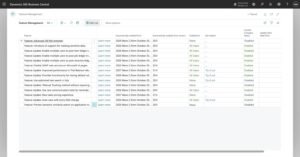
Turning it on
- Open Feature Management.
- Find Feature: Preview semantic similarity search on application metadata in the list.
- Set Enabled For to All Users (or a test group first, if you’d rather roll it out gradually).
- Give it a minute to take effect, then go test it.
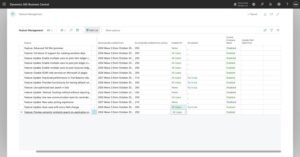
Keyword vs. semantic, side by side
The easiest way to feel the difference is to ask Chat with Copilot for something using a description instead of a page name. Before enabling the feature, a query like “where do I see which items are running low on stock” is a coin flip — if the words don’t line up closely enough with a page’s name or description, Copilot comes back empty or points you somewhere wrong. After enabling it, the same query reliably lands you on the right list.

It’s a small thing in isolation, but it’s the difference between Copilot search being “works if you already know BC” and “works if you can describe what you want.”
Three capabilities, one switch
Microsoft names three capabilities that consume this feature key, and it’s worth pausing on the third one:
| Capability | Status (per Microsoft’s own docs) | What changes when the key is on |
|---|---|---|
| Chat with Copilot | Preview, no GA date announced yet | Descriptive queries find the right page/report instead of requiring exact names |
| Analysis assist | GA | Presumably the same object-finding logic under the hood, though Microsoft doesn’t spell out an observable difference here |
| Dynamic tool mode in MCP Server | — (not a Copilot UI feature) | Potentially changes how agents find tools at runtime |
That last row is the one I actually care about professionally. If you’ve set up the BC MCP server with Dynamic Tool Mode turned on — which you should, if you’re anywhere near Copilot Studio’s 70-tool ceiling — your agent finds tools at runtime through three system tools: bc_actions_search, bc_actions_describe, and bc_actions_invoke. bc_actions_search is, as the name says, a search. And Microsoft’s own feature key page tells you, in the same breath as Chat with Copilot, that it governs search quality for MCP’s dynamic tool mode too.
Here’s the honest caveat, because I checked instead of assuming: the MCP configuration documentation itself — the page that describes Dynamic Tool Mode in detail — doesn’t mention “semantic” anywhere. Not in the Dynamic Tool Mode field description, not in the Discover Additional Objects section. The connection exists only on the feature key’s own page, as a bare bullet point with no further explanation of what changes technically. So take the practical implication seriously, but don’t treat it as fully documented: if your agent is picking the wrong tool for a task, or missing an obviously relevant one, this feature key is now on my checklist before I go digging through JSON exports — I just can’t promise you exactly what changes under the hood until Microsoft says more.
My take
This is a good one to flip on in a sandbox now, for two reasons. First, it’s cheap to test — no configuration beyond the toggle, no billing decision to make, nothing to migrate. Second, if you’re already running BC MCP with Dynamic Tool Mode for a Copilot Studio agent, “the tool search got measurably better” is a nicer discovery than finding out about it after users complain the agent picked the wrong tool.
I wouldn’t push it into production on day one — it’s still a preview feature with terms that say as much, and Microsoft hasn’t published anything about performance or cost impact. But for a test tenant, there’s no reason to leave it off any longer than I did.
Give it a try, and if you notice a concrete before/after on the MCP side — not just in chat — I’d genuinely like to hear about it. That’s the part Microsoft’s own docs leave open.
Discover more from Lubenheimer
Subscribe to get the latest posts sent to your email.